Omarchy Quattro Panel
Displays, handled
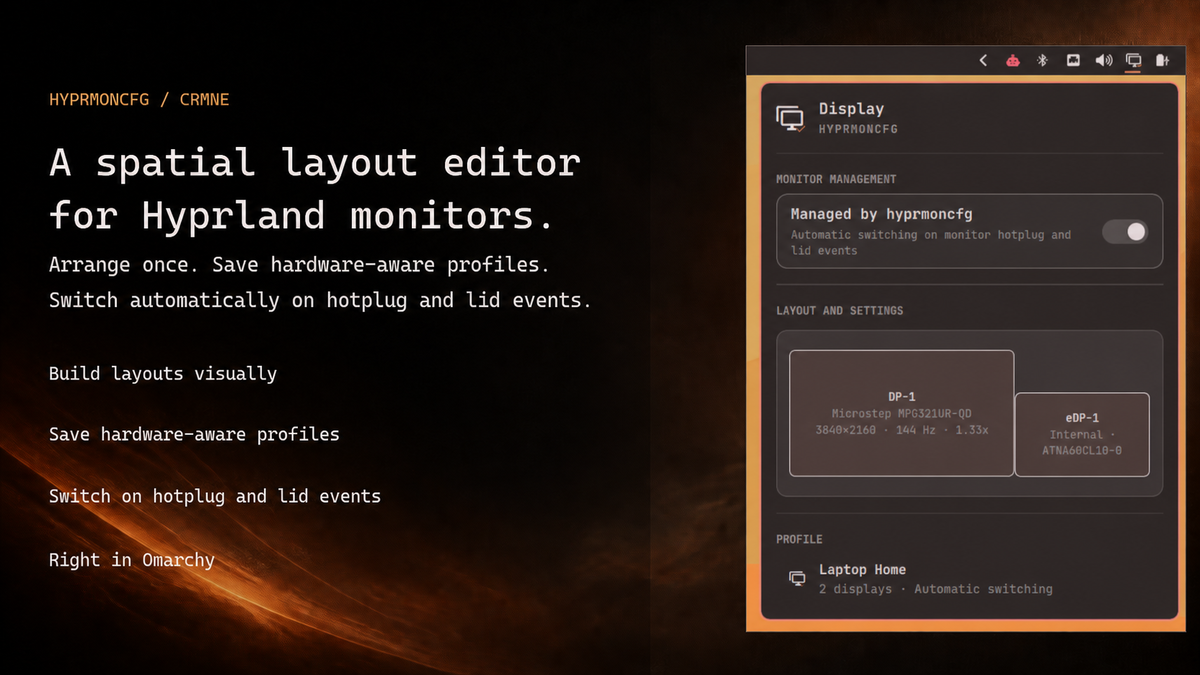
The hyprmoncfg: Multi-Monitor Manager for Omarchy plugin lets you create multi-monitor layouts for Hyprland in a visual editor and switch them automatically on hotplug and lid events. Open the panel to see the layout that is live right now, the profile that matched it, and whether hyprmoncfg is managing your displays.
If you find the panel useful, I’d appreciate a star on GitHub. It helps get the word out.
Turn management on and hyprmoncfg switches profiles automatically on monitor hotplug and laptop lid events. Turn it off and display ownership goes cleanly back to Omarchy. Layout and settings opens the full spatial editor in Omarchy’s centered TUI window.
Install the panel
Get it from the Omarchy Plugins marketplace, or install it directly:
omarchy plugin add https://github.com/crmne/omarchy-hyprmoncfg.git --enable
If hyprmoncfg is already installed, the panel connects to its daemon over the local IPC socket and updates as monitor state changes.
If it is missing, open the panel and choose Install hyprmoncfg. The panel uses Omarchy’s normal presented package flow to install the stable AUR package, enables and starts hyprmoncfgd.service, and then opens the layout editor. Arrange your monitors, press s, and save your first profile. The panel refreshes as soon as it is ready.
What the panel controls
- Managed by hyprmoncfg enables or disables the user daemon
- Layout and settings opens the spatial TUI
- Profile shows the active hardware-aware profile and whether it was selected automatically
The panel is a desktop surface for the same daemon and IPC protocol used by the TUI and CLI. It does not maintain another copy of monitor state or write Hyprland configuration on its own.
When Omarchy still moves your displays
Omarchy manages monitors too, and two managers can disagree. Three things keep hyprmoncfg in charge, all of them automatic:
- hyprmoncfg writes its own
~/.config/hypr/hyprmoncfg-monitors.luaand adds one line at the end ofhyprland.luato load it. Loading last means nothing before it, including Omarchy’s clamshell toggle, can override the layout you applied. Yourmonitors.luais left exactly as Omarchy shipped it - the daemon stops Omarchy’s monitor watcher while it owns your displays
- every apply records the internal panel’s scale where Omarchy’s clamshell script looks for it, so a lid or wake event brings the panel back at your scale rather than its default
The daemon also shares Omarchy’s native Laptop Display toggle. When a profile disables the internal display while an external display is active, it records that choice in Omarchy’s manual-disable flag before reloading. Omarchy’s wake and clamshell paths already respect this flag, so they leave the disabled panel alone instead of repeatedly enabling it on the lock screen.
Changing Hardware → Laptop Display or its keybinding updates the active profile’s internal-display setting. The daemon uses the saved profile as its base, preserving the display’s position, scale, and mode when turning it back on. If an older external-only profile omits the laptop display entirely, enabling it adds the panel to the right of the existing layout, using its reported mode or an advertised mode when the disabled panel has no live geometry. The change is saved after a successful apply and keeps automatic profile selection in its current mode. A toggle can take up to the daemon’s polling and debounce interval to appear. Preview rollback restores the previous native flag as well as the generated configuration.
Flag changes during sleep, lid changes, and external-monitor reconnection are treated as recovery activity, not as edits to your saved profile.
This integration uses Omarchy’s existing user state; it does not modify packaged scripts or require the proposed monitor-management switch. The flag continues to reflect the last applied layout when management is handed back. Other tools can still send conflicting monitor commands directly, and future Omarchy changes may require adapting this integration.
Check the load order at any time:
hyprmoncfg doctor
If your Hyprland config is managed by a dotfile tool such as chezmoi or stow, keep the line hyprmoncfg doctor prints in your source copy. Otherwise your dotfile tool and hyprmoncfg will keep re-adding and removing it.
Remove it
omarchy plugin remove crmne.hyprmoncfg
Removing the panel leaves hyprmoncfg and your saved profiles installed. Turn off Managed by hyprmoncfg first if you also want Omarchy to resume display management.