TUI Walkthrough
Layout editor
At narrow widths, footer Apply/Save/Keys actions take priority over project links and build information. The Workspaces planner includes Persistence: First per display (default) or All assigned. Manual plans display Custom (per rule) and preserve individual flags.
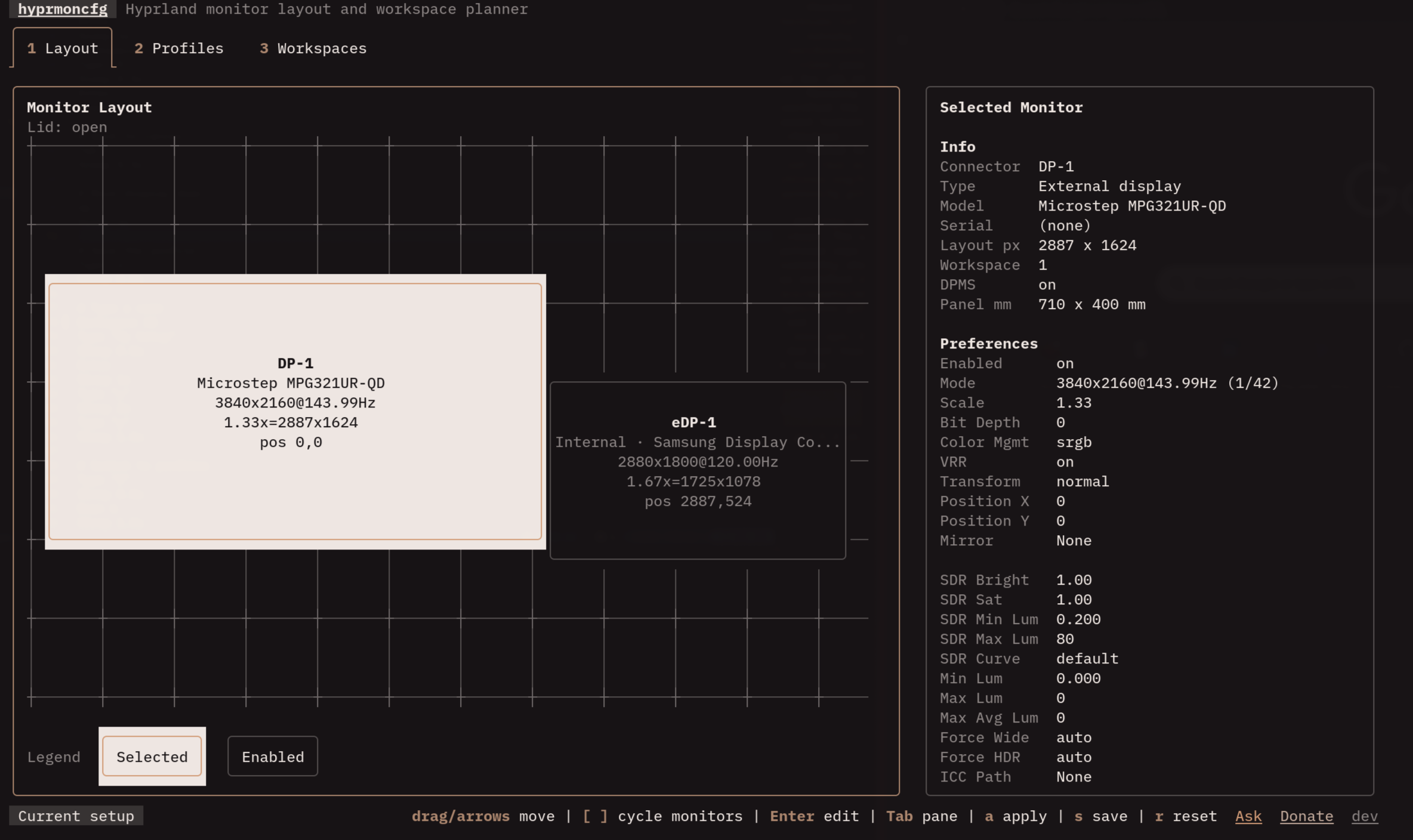
When you launch hyprmoncfg, you land on the layout tab. This is where you arrange your monitors and tune their settings. The screen is split into two panes:
- Left: a canvas showing your monitors as draggable rectangles, positioned the way Hyprland currently sees them
- Right: monitor information above switchable Display and Color controls – resolution, scale, position, transform, VRR, color management, and more
Display cards consistently show connector, model with whole-inch size (32"),
3840x2160@144Hz, Scale 1.33x Position 0,0, and workspace IDs. There are no
arbitrary display numbers or logical desktop dimensions. Small cards prioritize
identity and workspaces. Formatting never rounds the stored mode or scale.
The hardware summary shows connector, model, and maximum advertised
resolution, panel dimensions, type, and serial, all shown directly without a
More details action. The TUI currently has no standalone on-screen Identify overlay; this
remains a panel capability, not a requirement to install Omarchy for the TUI.
Panel size shows a whole-inch diagonal and exact reported dimensions, such as
32" (710x400mm), separately from the inspector’s model name.
Drag monitors on the canvas to reposition them. The information and controls update in real time. When you need pixel-perfect placement, use the Position X and Position Y fields in Display instead of dragging.
While the TUI is open, it also refreshes live monitor state in the background. Plugging or unplugging a monitor, docking, undocking, or changing lid state reloads the editor so the canvas matches the current hardware.
The canvas only draws displays that are on and not mirroring another one. Off
and mirrored displays have separate bracketed rows above the geometry, showing
connector, state, and model. Click a row to inspect it; click Enable to turn an
off display on in the draft. Keyboard users can select it with [ / ] and press
Space. This does not apply the draft. Missing hardware says Not connected
without an Enable action. In crowded layouts, keyboard selection reveals hidden
rows without covering the active display cards.
Main controls
| Key | Action |
|---|---|
1 2 3 |
Switch tabs (layout, workspaces, profiles) |
a |
Apply current draft or selected profile |
s |
Save current draft as a named profile |
r |
Reset from live Hyprland state |
? |
Show every key for the tab you are on |
q |
Quit |
Canvas controls
| Input | Action |
|---|---|
| Mouse drag | Move the selected monitor |
| Arrow keys | Move by 100px |
Shift + arrows |
Move by 10px |
Ctrl + arrows |
Move by 1px |
Alt + arrows |
Snap beside the nearest enabled monitor |
0 |
Move the selected monitor to 0,0, where Hyprland’s own position = auto starts |
[ ] |
Select the previous or next monitor |
Tab Shift+Tab |
Move between the canvas, Display, and Color |
Dragging snaps to nearby edges on release. Alt + arrows place the selected monitor flush left, right, above, or below the nearest enabled monitor and center it on the other axis. Regular keyboard movement remains freeform.
Display and Color controls
Press Enter on any Display or Color field to edit it:
- Mode opens a scrollable picker with every supported resolution and refresh rate
- Scale, Position X, Position Y accept typed numeric values
- Rotation, VRR cycle through their options with Enter or scroll
- Mirror lets you mirror the selected monitor to any other connected display. For a crisp image, set the mirrored monitor’s Mode to match the source resolution. If the resolutions don’t match, Hyprland upscales the image, which looks blurry
The Color tab uses the same terminology as the Omarchy panel. Color space / EOTF combines the primaries and transfer function (for example, BT.2020 + PQ (HDR)). The picker shows descriptive labels but saves Hyprland’s original values, such as hdr.
SDR luminance scale and SDR saturation scale are unitless SDR-to-HDR multipliers, not physical brightness controls. An omitted or zero multiplier uses the neutral value 1. Black, white, peak, and frame-average luminance are measured in cd/m². Display luminance and WCG/HDR capability fields override display metadata; leave them at their defaults to use EDID. Narrow terminals shorten the labels without changing their meaning.
Save dialog
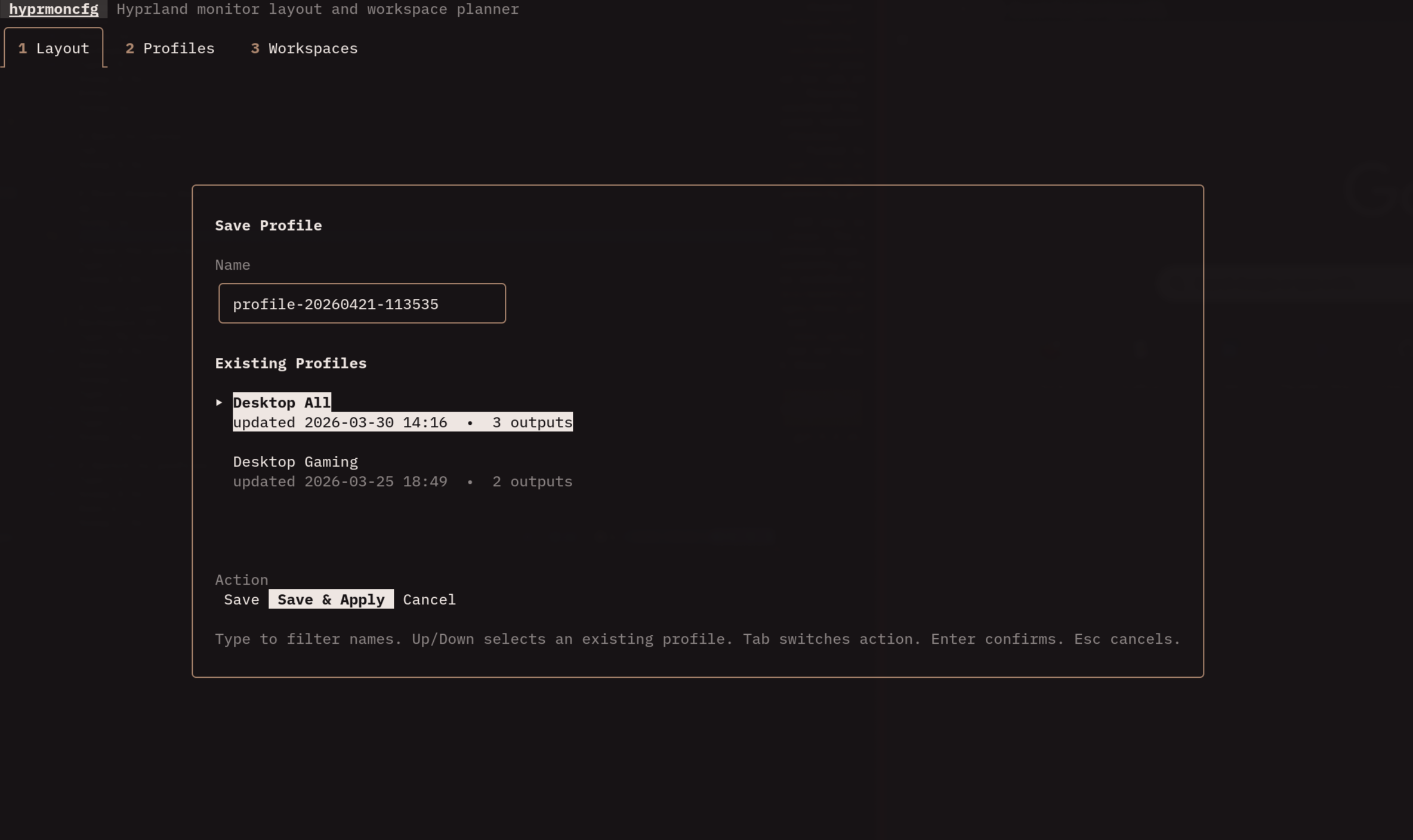
Press s from the layout tab. You’ll see a text input and the list of existing profiles.
- Type to filter existing profiles
- Arrow keys to select one (overwrites after confirmation)
- Type a new name and press
Enterto create a fresh profile
Profiles
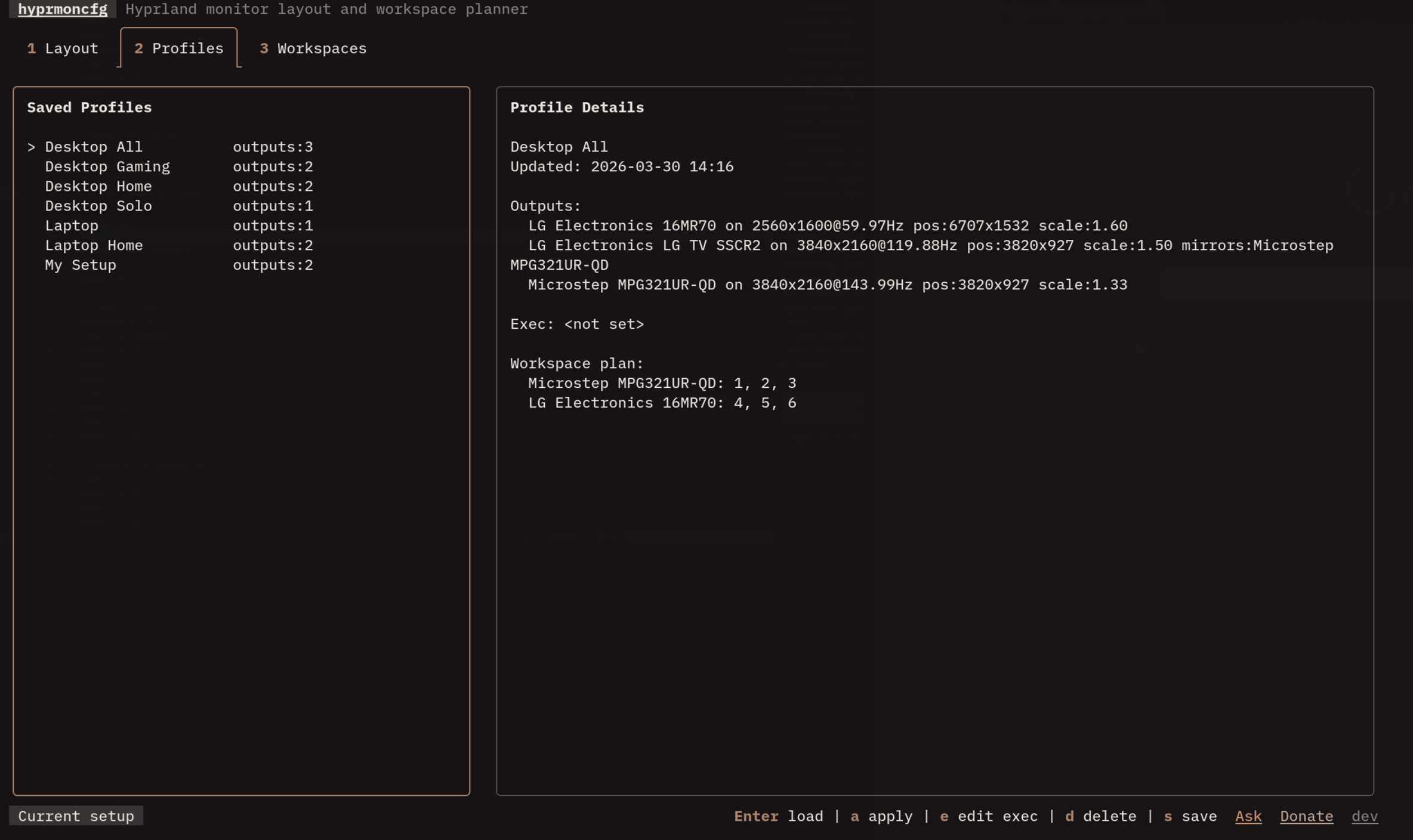
The third tab lists every saved profile and how well it fits the displays that are plugged in right now.
Automatic profile selection has its own compact box above the left-hand profile list, matching its width. The details column starts at the top alongside it. Click its On/Off control to change automatic matching. The Saved Profiles box contains only the table and its actions: Preview, Edit, and Delete stay pinned below the scrolling list and act on the highlighted row. Profile details remain alongside the list, or below it in narrow terminals.
- Match is the profile’s score against the connected hardware, the same score the daemon uses to pick a profile automatically. A dash means the profile has no display in common with what is connected
- active marks the profile your screens are already showing
- best marks the highest scoring profile – the one the daemon would apply on the next hotplug
Selecting a profile fills the right side: its details on top, its monitor arrangement below. The details spell out the score as the arithmetic that produced it, so a surprising number is never a mystery, and they list what the canvas cannot draw – displays the profile keeps off and displays that mirror another one. On the canvas, a display the profile expects but cannot find is outlined and labelled not connected.
| Key | Action |
|---|---|
↑ ↓ |
Select a profile |
Enter, a |
Preview the profile, even with automatic selection on |
l |
Load the profile into the layout editor |
e |
Edit the profile’s post-apply command |
d |
Ask to delete the profile; y confirms, Enter or Esc cancels |
s |
Save the current draft |
Post-apply command is the final profile detail. Click its
Edit command button or its heading to edit it; e provides the same operation. Selection
uses highlighting without an extra arrow. The profile action context menu remains
a panel-only affordance for now; the TUI has visible Preview, Edit,
and Delete buttons acting on the highlighted profile, with keyboard shortcuts
listed in the footer and help.
Selection alone does not apply it. The Status column distinguishes the active or
best match from the row currently selected for inspection.
Workspace planner
The second tab lets you distribute workspaces across monitors. Pick one of three strategies:
| Strategy | What it does | When to use it |
|---|---|---|
sequential |
Groups workspaces in chunks (e.g., 1-3 on monitor A, 4-6 on monitor B) | You think of each monitor as having “its own” workspaces |
interleave |
Round-robins workspaces across monitors (1 on A, 2 on B, 3 on A, …) | You want next/previous workspace to alternate screens |
manual |
Shows every workspace as an assignment you can move between monitors | You need full control over exactly which workspace lives where |
You can also configure:
- Workspace rules on/off – disable them entirely if you manage workspaces yourself
- Max workspaces – how many workspaces to generate rules for
- Group size (sequential only) – how many consecutive workspaces to assign to each monitor before moving to the next. With 2 monitors and a group size of 3, monitor A gets 1-3, monitor B gets 4-6, and so on
- Monitor order – which monitor gets the first batch of generated workspaces. Applied assignments preserve this order when the editor reads the live configuration back, independently of the monitors’ physical positions. Save the profile to reuse it later.
- Workspace → display (manual only) – select a workspace and press
←or→to assign it to a different monitor
There is no fixed workspace or group-size limit. Select Max workspaces or Group size and press Enter to type an exact count; ← and → still make one-step adjustments.
Long manual lists stay navigable: the mouse wheel scrolls three rows at a time, Page Up and Page Down move by a visible page, and Home and End jump to the first or last row. Only the visible assignment rows are rendered.
Switching from a generated strategy to manual starts with the plan already on screen, so you can adjust only the exceptional workspaces instead of rebuilding the whole layout. In manual mode, changing Max workspaces adds or removes numbered workspace assignments.
The right side previews the result twice: Workspace Plan lists which workspaces each monitor owns, and Monitor Layout paints those same workspaces onto the monitors themselves. Both update as you change the strategy, so you can see where workspace 1 lands before you save.
The workspace plan is stored inside each profile. When the daemon applies a profile, it applies workspace rules too – layout and workspace assignment in one shot.
Laptop lids
Internal laptop panels are marked as internal displays in the layout view. The TUI also shows the current lid state when it is available.
Profiles are still profiles for the attached monitor setup, not separate open-lid and closed-lid variants. The closed-lid policy only forces internal laptop panels off when a real external output already has a usable, awake mode and the target profile keeps it enabled. A modeless dock output, sleeping display, or synthetic fallback does not qualify. Workspace rules move away from a forced-off panel.
Interactive previews default to 30 seconds after verification. Confirming a saved profile pauses automatic selection for the current display setup. There is no need to turn automatic selection off before starting a preview.