Getting Started
Install
Arch Linux
yay -S hyprmoncfg-bin
yay -S hyprmoncfg-git
Fedora COPR
sudo dnf copr enable paolino/hyprmoncfg
sudo dnf install hyprmoncfg
Nix / NixOS
nix run nixpkgs#hyprmoncfg
nix profile install nixpkgs#hyprmoncfg
environment.systemPackages = with pkgs; [
  hyprmoncfg
];
Gentoo GURU
sudo eselect repository enable guru
sudo emaint sync -r guru
sudo emerge gui-apps/hyprmoncfg
Void Linux
Unofficial Blackhole-vl:
printf 'repository=https://mirror.black-hole.dev/%s/\n' "$(uname -m)" | sudo tee /etc/xbps.d/00-repository-blackhole.conf
sudo xbps-install -S
sudo xbps-install -S hyprland hyprmoncfg
Build from source
git clone https://github.com/crmne/hyprmoncfg.git
cd hyprmoncfg
go build -o bin/hyprmoncfg  ./cmd/hyprmoncfg
go build -o bin/hyprmoncfgd ./cmd/hyprmoncfgd
Install to ~/.local/bin
install -Dm755 bin/hyprmoncfg  ~/.local/bin/hyprmoncfg
install -Dm755 bin/hyprmoncfgd ~/.local/bin/hyprmoncfgd
Configure Hyprland
hyprmoncfg needs:
- A running Hyprland session
hyprctlinPATH- A Hyprland config that includes hyprmoncfg’s generated monitor file
For legacy hyprlang configs, most setups already have this in ~/.config/hypr/hyprland.conf:
hyprmoncfg writes a file it creates and owns, ~/.config/hypr/hyprmoncfg-monitors.lua (or .conf on legacy configs), and adds one line at the end of your root Hyprland config to load it:
dofile(os.getenv("HOME") .. "/.config/hypr/hyprmoncfg-monitors.lua")
Loading last is what makes an applied layout final: any monitor rule Hyprland reads afterwards would override it. You do not need to add the line yourself, and nothing you wrote is replaced – a monitors.conf or monitors.lua of your own is left alone. hyprmoncfg doctor reports the current state if you want to check.
If your Hyprland config is managed by a dotfile tool such as chezmoi or stow, keep that line in your source copy. Otherwise your dotfile tool and hyprmoncfg will keep undoing each other.
Hyprland does not read the generated file automatically, so on apply hyprmoncfg reloads Hyprland and asks the active Lua state to confirm that the file actually ran. If it did not, hyprmoncfg restores the previous file rather than leaving you with a layout that silently did nothing.
If your config files live somewhere other than the defaults:
hyprmoncfg --monitors-conf /path/to/monitors.conf --hypr-config /path/to/hyprland.conf
hyprmoncfg --monitors-conf /path/to/monitors.lua --hypr-config /path/to/hyprland.lua
Create your first profile
Launch the TUI:
hyprmoncfg
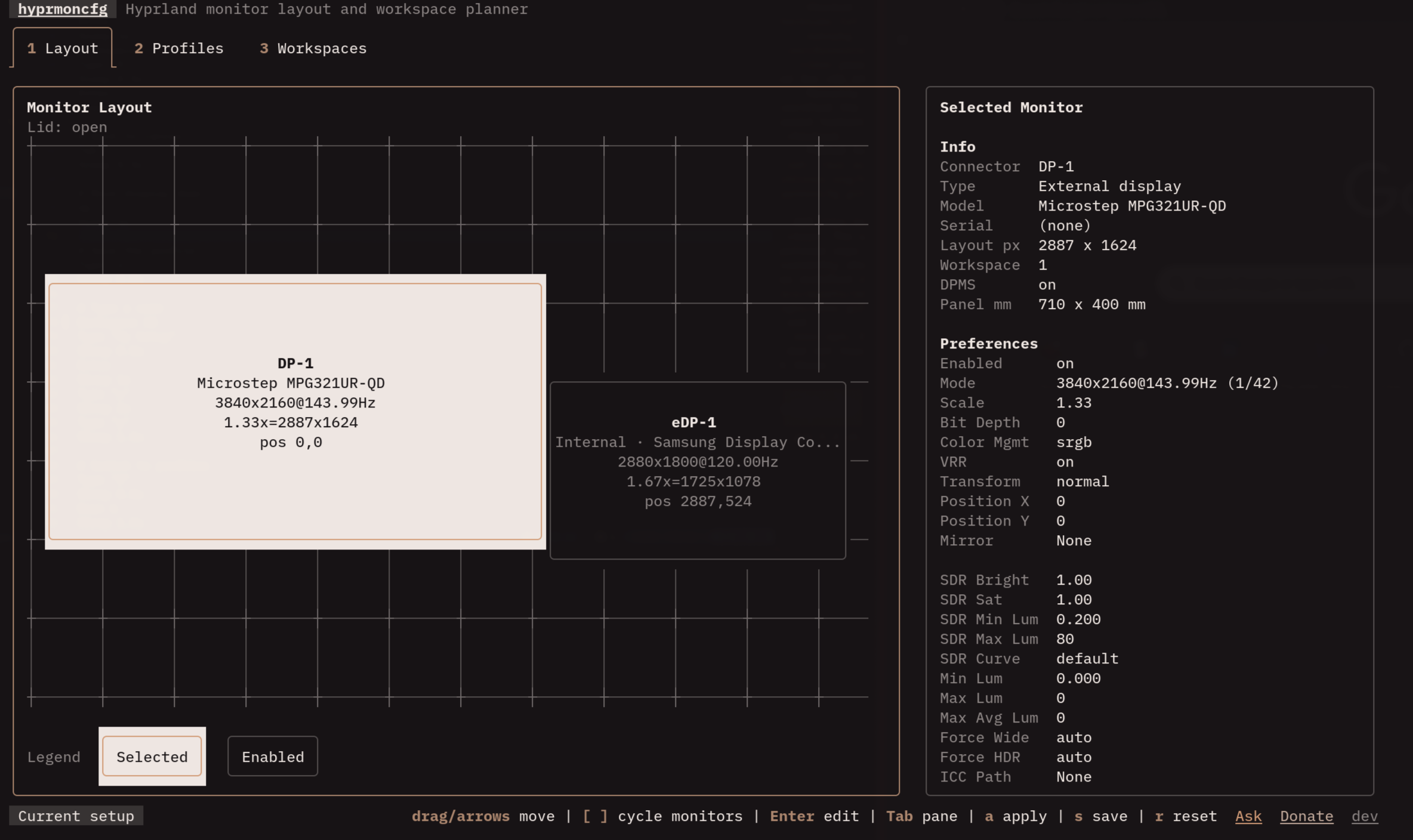
You land on the layout tab. The left side shows your connected monitors as rectangles arranged the way Hyprland currently sees them. The right side keeps hardware information above focused Display and Color controls for the selected monitor.
Drag monitors on the canvas to rearrange them. Click Display or Color in the pane border, then select a field to change resolution, scale, position, or color behavior. When the layout looks right:
- Press
sto save - Type a name like
deskorhome-office - Press
Enter
That’s it. Your monitor layout is now a named profile.
Apply a saved profile
hyprmoncfg apply desk
Your monitors rearrange immediately, and a 10-second countdown starts. If the layout looks right, press any key to confirm. If something looks wrong, just wait – it reverts automatically. This is the same safety mechanism you see on TVs and projectors when you change the resolution.
For scripts and automation, skip the countdown:
hyprmoncfg apply desk --confirm-timeout 0
Enable automatic switching
The daemon watches for monitor changes and applies the best matching profile automatically. Set it up once and forget about it.
Clean Up Before You Enable The Daemon
hyprmoncfgd scores every profile in ~/.config/hyprmoncfg/profiles/. Old experiments, duplicate layouts, and half-finished saves are part of matching until you delete them.
Before you turn on automatic switching, make sure your profile library reflects real setups you actually want auto-applied:
- Save one profile for each real desk, dock, projector, or travel setup you use
- Delete throwaway profiles you created while experimenting
- Re-save the profile you actually use instead of keeping old variants around
On laptops, you do not need a separate closed-lid profile. Save the profile for the monitors you attach at that desk. When the lid is closed and an external monitor is connected, hyprmoncfg forces the internal laptop panel off for the apply and moves workspaces away from it.
AUR, Fedora COPR, Nixpkgs, and Gentoo GURU:
systemctl --user daemon-reload
systemctl --user enable --now hyprmoncfgd
Void Linux with Blackhole-vl, in legacy hyprland.conf:
exec-once = hyprmoncfgd
Void Linux with Blackhole-vl, in hyprland.lua:
hl.on("hyprland.start", function()
  hl.exec_cmd("hyprmoncfgd")
end)
Manual install:
mkdir -p ~/.config/systemd/user
cp packaging/systemd/hyprmoncfgd.local.service ~/.config/systemd/user/hyprmoncfgd.service
systemctl --user daemon-reload
systemctl --user enable --now hyprmoncfgd
Now when you plug in a monitor, unplug one, dock your laptop, or close the lid, the daemon finds the profile that best matches your current hardware and applies it. No interaction needed. The packaged systemd service works with both config formats because the daemon detects the active Hyprland config and writes the matching generated file through the same apply engine as the TUI.
If the daemon ever applies a layout you didn’t expect, the most common cause is stale or duplicate profiles in ~/.config/hyprmoncfg/profiles/. The daemon scores every profile it finds, not just the ones you remember saving. Delete old experiments, keep one profile per real setup, and the matching becomes predictable. See Daemon Behavior for the full scoring breakdown.
Add profiles to your dotfiles
Profiles are stored in ~/.config/hyprmoncfg/profiles/. Each profile has a canonical JSON file plus generated .conf and .lua sidecars, so you can keep the layouts as plain Hyprland snippets even if you stop using hyprmoncfg. Add the whole config directory to your dotfile manager and your layouts roam across every machine.
With chezmoi:
chezmoi add ~/.config/hyprmoncfg
Your desk at home, your laptop bag setup, your conference projector layout – all versioned, all portable. The daemon on each machine picks the right profile based on what’s actually plugged in.
You never commit the generated ~/.config/hypr/hyprmoncfg-monitors.{conf,lua}. You commit your profiles. hyprmoncfg writes it for you. Do commit the one include line it adds to your Hyprland config, so your dotfile tool and hyprmoncfg stop undoing each other.
Next steps
- TUI Walkthrough – learn the full editor interface
- Daemon Behavior – understand how auto-switching works
- Dotfiles Integration – set up profile portability
- Command Reference – every flag and subcommand