TUI Walkthrough
Layout editor
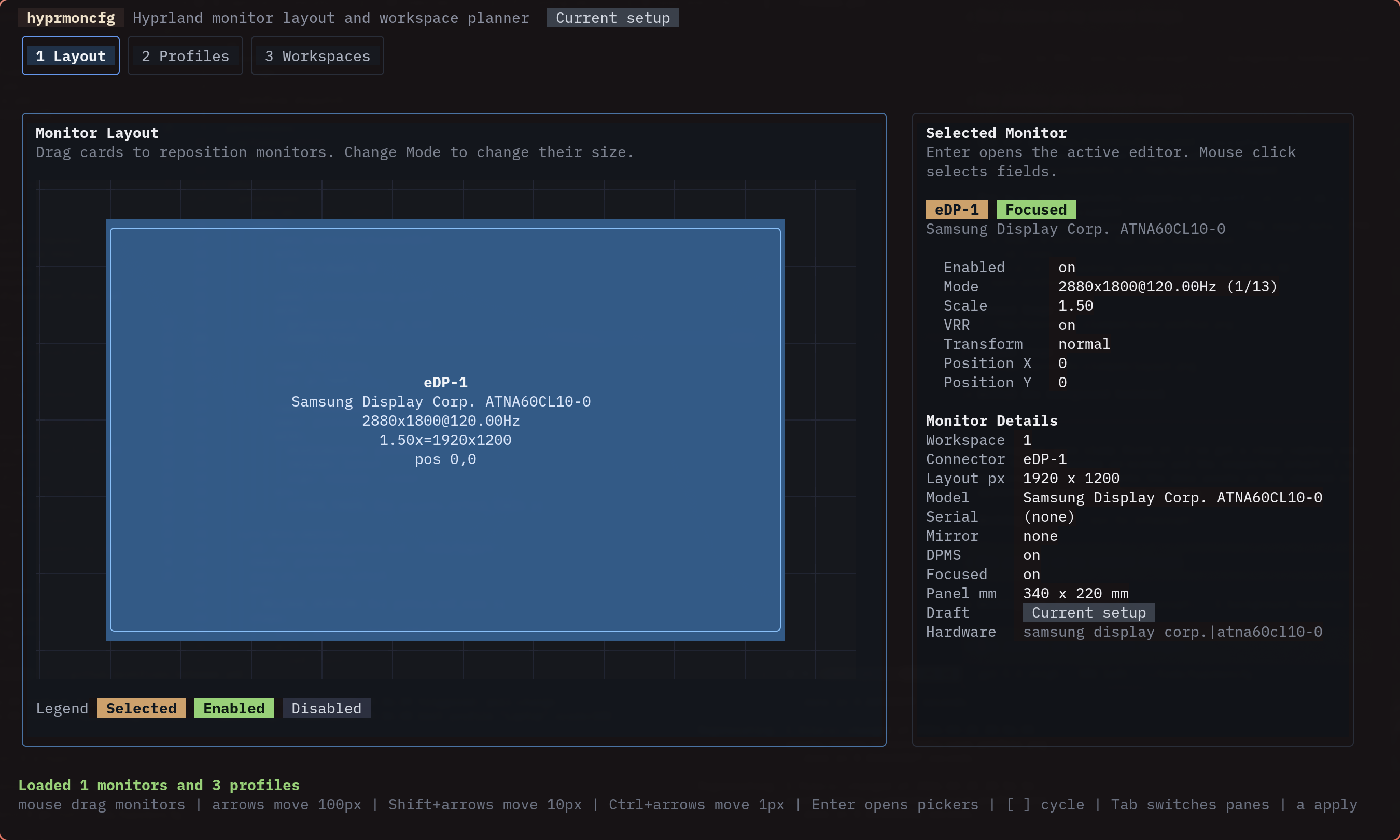
The layout tab is where you spend most of your time. It’s split into two panes:
- Left: a spatial canvas showing your monitors as draggable rectangles
- Right: an inspector showing every property of the selected monitor
Drag monitors on the canvas to reposition them. The inspector updates in real time. When you need pixel-perfect placement, use the Position X and Position Y fields in the inspector.
Main controls
| Key | Action |
|---|---|
1 2 3 |
Switch tabs (layout, profiles, workspaces) |
a |
Apply current draft or selected profile |
s |
Save current draft as a named profile |
r |
Reset from live Hyprland state |
q |
Quit |
Canvas controls
| Input | Action |
|---|---|
| Mouse drag | Move the selected monitor |
| Arrow keys | Move by 100px |
Shift + arrows |
Move by 10px |
Ctrl + arrows |
Move by 1px |
[ ] |
Cycle selected monitor |
Tab |
Switch focus between canvas and inspector |
Snap hints appear while dragging, but keyboard movement is freeform – you’re never forced into a grid.
Inspector
Press Enter on any inspector field to edit it:
- Mode opens a scrollable picker with every supported resolution and refresh rate
- Scale, Position X, Position Y accept typed numeric values
- Transform, VRR, Mirror have their own selectors
Save dialog
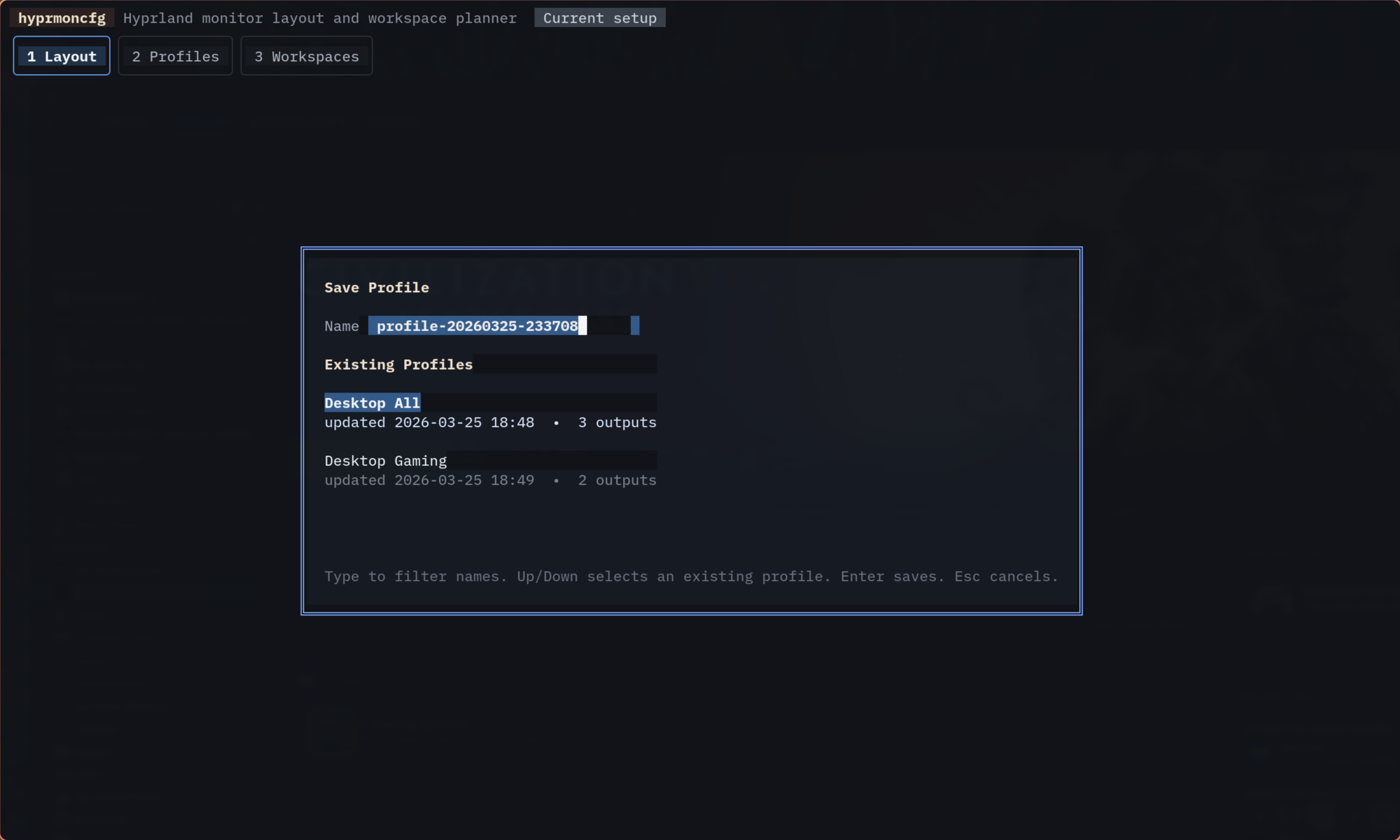
Press s from the layout tab. You’ll see a text input and the list of existing profiles.
- Type to filter existing profiles
- Arrow keys to select one (overwrites after confirmation)
- Type a new name and press
Enterto create a fresh profile
Workspace planner
The third tab lets you distribute workspaces across monitors. Three strategies:
| Strategy | What it does |
|---|---|
sequential |
Groups workspaces in chunks (e.g., 1-3 on monitor A, 4-6 on monitor B) |
interleave |
Round-robins workspaces across monitors (1 on A, 2 on B, 3 on A, …) |
manual |
You define explicit rules for each workspace |
You can configure:
- Whether workspace rules are enabled at all
- Maximum workspace count
- Group size for sequential mode
- Monitor ordering
The workspace plan is stored inside each profile. When the daemon applies a profile, it applies workspace rules too – layout and workspace assignment in one shot.