Getting Started
Prerequisites
- A running Hyprland session
hyprctlinPATH- A
monitors.conffile that Hyprland actually sources
Most Hyprland setups already have a source = ~/.config/hypr/monitors.conf line in hyprland.conf. If yours doesn’t, add one. hyprmoncfg will verify this before writing anything.
If your paths are non-standard:
hyprmoncfg --monitors-conf /path/to/monitors.conf --hypr-config /path/to/hyprland.conf
Install
Arch Linux
Stable release from AUR:
yay -S hyprmoncfg
Latest main from AUR:
yay -S hyprmoncfg-git
The package installs:
hyprmoncfgto launch the TUI or use the CLIhyprmoncfgdfor automatic profile switching- a user service unit at
/usr/lib/systemd/user/hyprmoncfgd.service
Build from source
git clone https://github.com/crmne/hyprmoncfg.git
cd hyprmoncfg
go build -o bin/hyprmoncfg  ./cmd/hyprmoncfg
go build -o bin/hyprmoncfgd ./cmd/hyprmoncfgd
Install to ~/.local/bin
install -Dm755 bin/hyprmoncfg  ~/.local/bin/hyprmoncfg
install -Dm755 bin/hyprmoncfgd ~/.local/bin/hyprmoncfgd
Your first profile
Launch the TUI:
hyprmoncfg
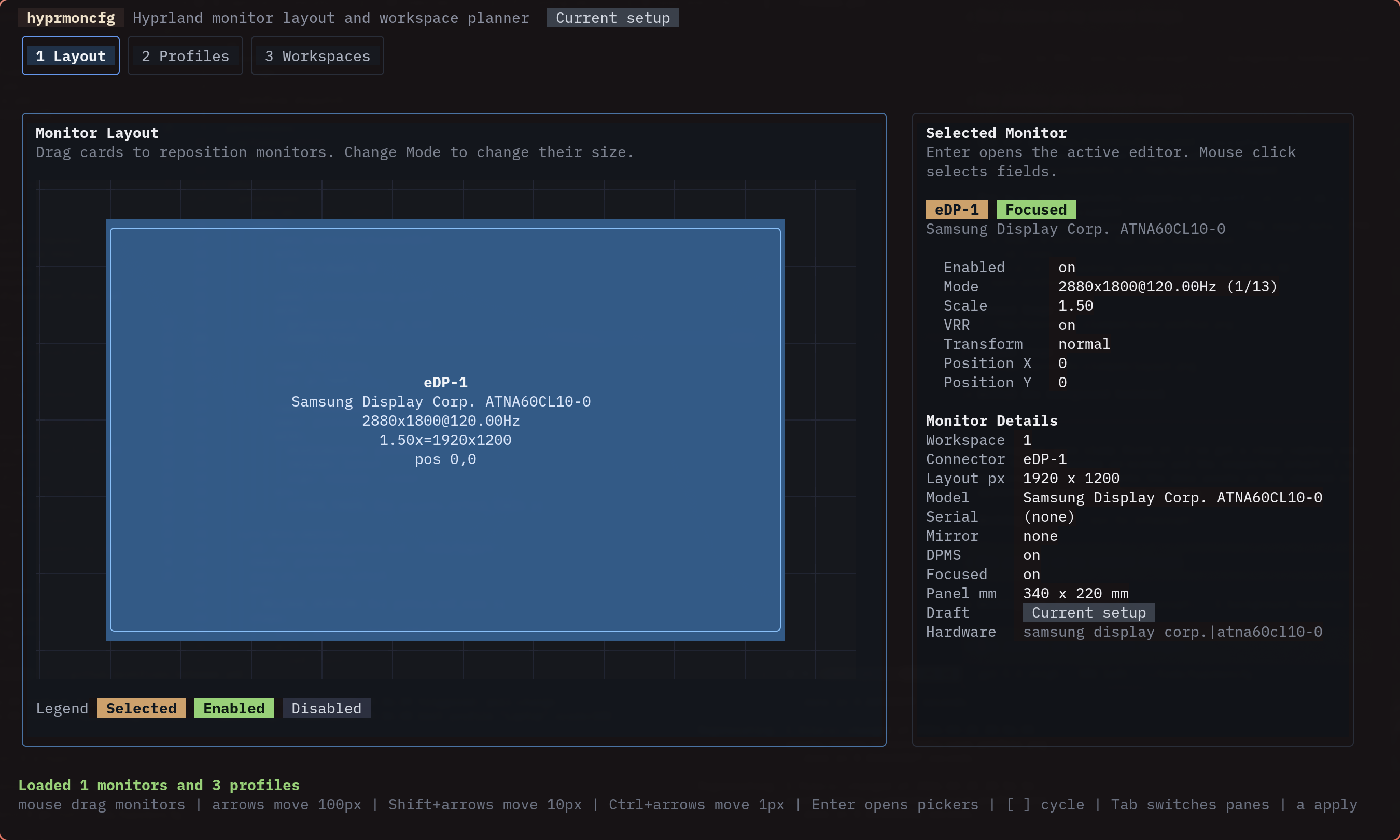
You’ll see your connected monitors laid out spatially. Drag them to arrange, use the inspector on the right to tweak mode, scale, and position. When the layout looks right:
- Press
sto save - Type a name like
deskorhome-office - Press
Enter
That’s it. Your monitor layout is now a named profile.
Apply from the command line
hyprmoncfg apply desk
You’ll get a 10-second confirmation window. If the layout looks wrong, just wait – it reverts automatically. For scripts and automation, disable the timer:
hyprmoncfg apply desk --confirm-timeout 0
Start the daemon
The daemon watches for monitor changes and applies the best matching profile automatically. Set it up once and forget about it.
If you installed from AUR:
systemctl --user daemon-reload
systemctl --user enable --now hyprmoncfgd
If you built from source and installed into ~/.local/bin:
mkdir -p ~/.config/systemd/user
cp packaging/systemd/hyprmoncfgd.local.service ~/.config/systemd/user/hyprmoncfgd.service
systemctl --user daemon-reload
systemctl --user enable --now hyprmoncfgd
Now when you plug in a monitor, unplug one, or dock your laptop, the daemon finds the profile that best matches your current hardware and applies it. No interaction needed.
Add profiles to your dotfiles
Profiles are plain JSON files stored in ~/.config/hyprmoncfg/profiles/. Add the whole config directory to your dotfile manager and your layouts roam across every machine.
With chezmoi:
chezmoi add ~/.config/hyprmoncfg
Your desk at home, your laptop bag setup, your conference projector layout – all versioned, all portable. The daemon on each machine picks the right profile based on what’s actually plugged in.
You never commit monitors.conf. You commit your profiles. hyprmoncfg writes monitors.conf for you.
Next steps
- TUI Walkthrough – learn the full editor interface
- Daemon Behavior – understand how auto-switching works
- Dotfiles Integration – set up profile portability
- Command Reference – every flag and subcommand